




Introduction
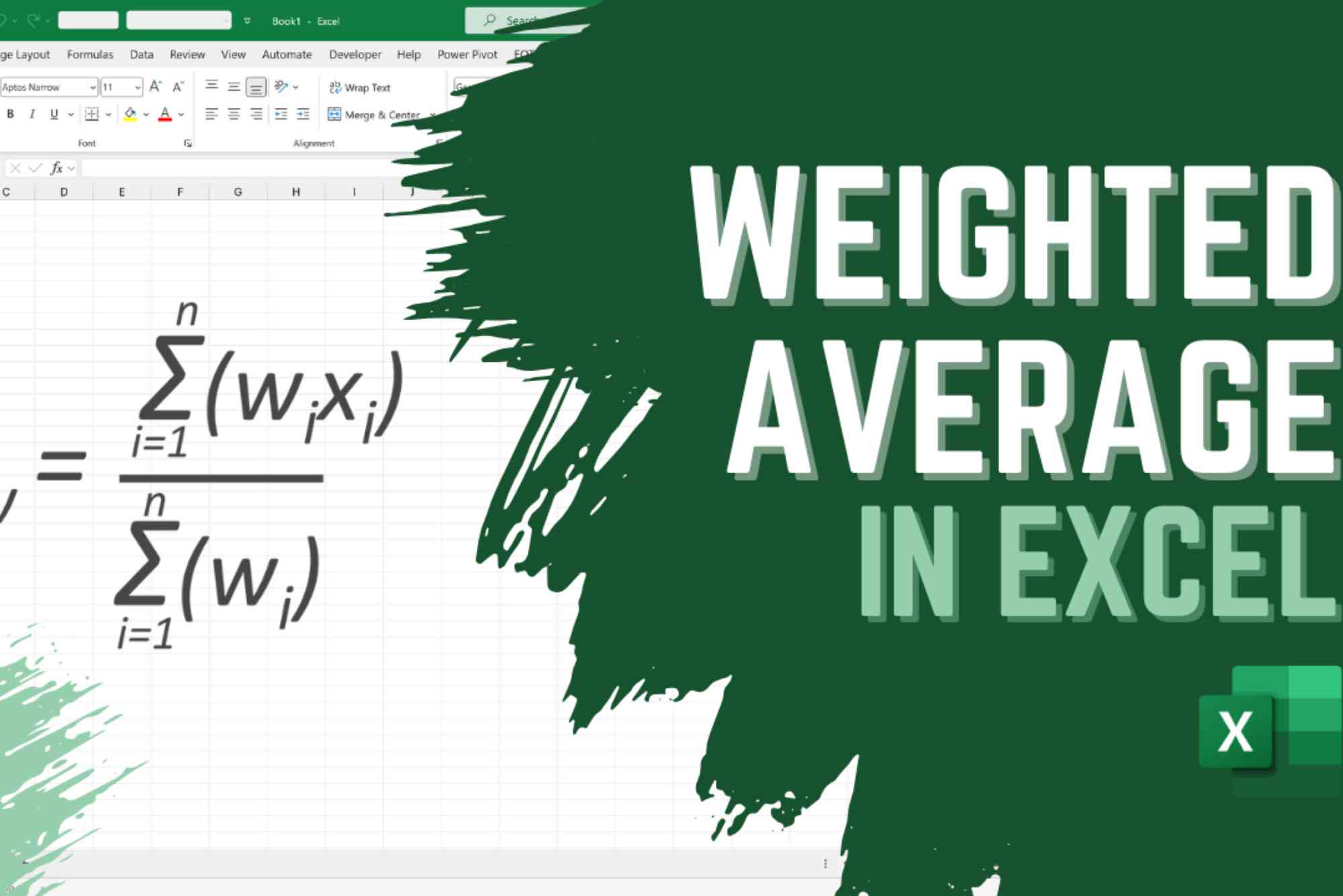
Calculating a weighted average rate in Excel is essential for finance, business analysis, and project management. Unlike a simple average, a weighted average considers the importance of each value. Understanding how to calculate weighted average rate in Excel helps ensure more accurate data analysis and decision-making. In this guide, we will walk through step-by-step instructions, practical examples, and tips to simplify the process.
Understanding Weighted Average
What is a Weighted Average?
A weighted average assigns different levels of importance to values. For instance, in finance, larger investments often carry more weight when calculating overall returns. Using a weighted average provides a realistic picture compared to a simple mean.
Why Use a Weighted Average in Excel?
Excel allows you to quickly calculate weighted averages for large datasets. It helps in budgeting, calculating grades, portfolio analysis, and performance metrics. It saves time and reduces manual errors.
Step-by-Step Guide to Calculate Weighted Average Rate in Excel
Prepare Your Data
Start by listing your values and their corresponding weights in two columns. For example, list investment returns in one column and investment amounts in another. Ensure each weight corresponds accurately to its value.
Use the SUMPRODUCT Function
Excel’s SUMPRODUCT function multiplies values by their weights and sums the result. The formula is:=SUMPRODUCT(values_range, weights_range)/SUM(weights_range)
This formula calculates the weighted average efficiently, even for large datasets.
Example Calculation
Suppose you have three investments with returns of 5%, 7%, and 10%, and amounts of $1000, $2000, and $3000. Enter values in one column and weights in the next. Use the formula:=SUMPRODUCT(B2:B4, C2:C4)/SUM(C2:C4)
The result is the weighted average rate, reflecting each investment’s proportion.


Using Excel’s AVERAGE Function (Optional)
For smaller datasets, a simple approach is multiplying each value by its weight manually and dividing by the sum of weights. However, using SUMPRODUCT is faster and less error-prone.
Tips for Accuracy
- Always ensure weights sum correctly.
- Avoid blank or non-numeric cells in value or weight columns.
- Format percentages consistently for clarity.
Advanced Techniques
Using Named Ranges
Assigning named ranges to your values and weights makes formulas readable and reusable. For example, name the returns column “Returns” and the weights column “Investments.” The formula becomes:=SUMPRODUCT(Returns, Investments)/SUM(Investments)
Weighted Average with Conditions
Use SUMIFS combined with SUMPRODUCT to calculate weighted averages for specific criteria. This method is useful in segmented analysis, such as calculating departmental performance.
Common Mistakes to Avoid
Misaligned Data
Ensure every weight matches the correct value. Misalignment can skew results.
Forgetting to Divide by Total Weight
SUMPRODUCT alone returns the total of weighted values. Dividing by total weight is crucial to get the average rate.
Calculating a weighted average rate in Excel is straightforward when using the SUMPRODUCT function. Properly organizing your data, understanding weights, and using Excel’s functions ensure accurate results. By mastering this method, you can analyze investments, budgets, and performance metrics efficiently. Start using these steps in your Excel projects today to make informed decisions.
Practice these steps on your dataset today and master the weighted average rate in Excel.
Looking to manage your finances smarter? financer.ae offers expert tips, tools, and insights to help you save, invest, and plan for a secure future. From budgeting guides to investment strategies, we make financial planning simple, efficient, and tailored to your goals—empowering you to take control of your money today.
FAQ
What is the easiest way to calculate weighted average in Excel?
The easiest way is using the SUMPRODUCT formula with values and weights divided by the sum of weights.
Can Excel calculate weighted average automatically?
Yes, Excel calculates it automatically using formulas like SUMPRODUCT, even for large datasets.
How do I handle percentages in weighted averages?
Ensure all percentages are formatted consistently. Multiply percentages by their respective weights and divide by total weights.
What if some weights are zero?
Weights of zero effectively exclude the corresponding value from the calculation, which can impact the overall average.
Can I calculate a weighted average for conditional data?
Yes, use SUMIFS with SUMPRODUCT to calculate weighted averages based on specific criteria like dates or categories.